Short answer: "Allowed memory size exhausted" means your site ran out of the memory PHP gives it. Raise memory_limit in cPanel's MultiPHP INI Editor, then find the plugin or theme that uses too much.
What the error looks like
Fatal error: Allowed memory size of 41943040 bytes exhausted (tried to allocate 4096 bytes) in .../wp-admin/includes/update.php
It often appears after installing a theme or plugin, importing demo content, or uploading a large file. Some hosting accounts start with a small default memory limit.
Fix it in cPanel
- Log in to cPanel.
- Open MultiPHP INI Editor (in the Software section).
- Choose Basic Mode, then pick your domain from the list.
- Find memory_limit and raise it, for example to
256M. If you are uploading big files, also raise upload_max_filesize and post_max_size. - Click Apply.
- Reload your site. If you still see the old error, clear your browser cache.
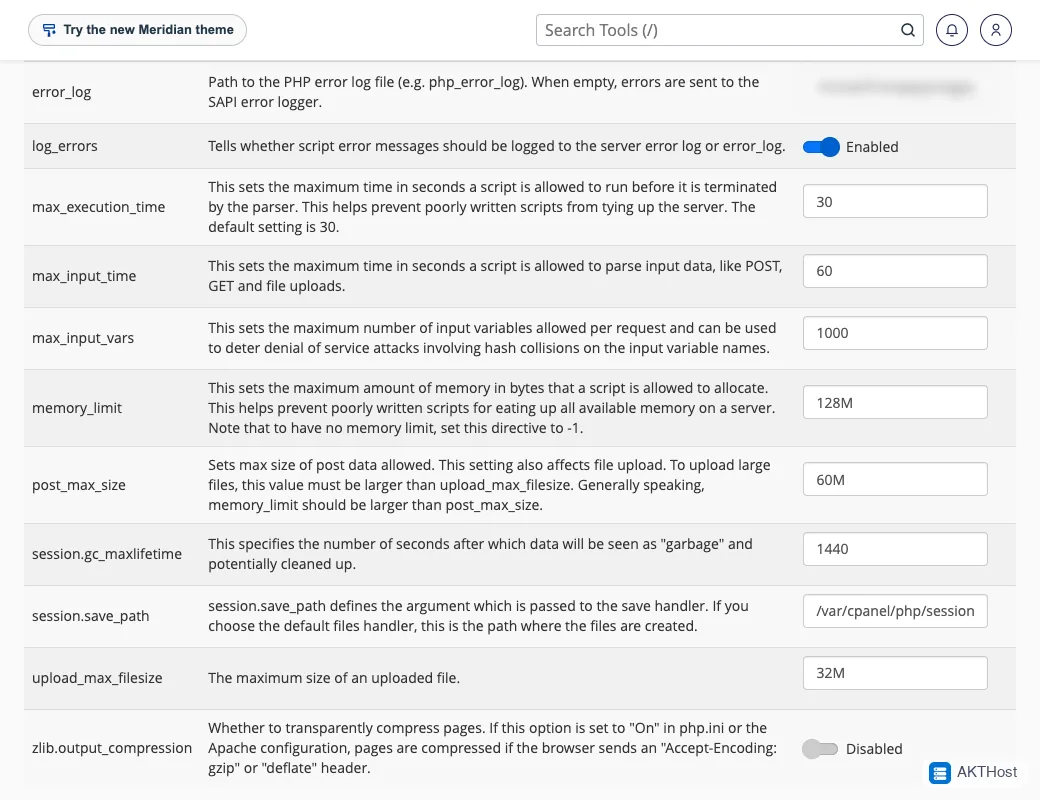 MultiPHP INI Editor: change the numbers in the Setting column.
WordPress setting (optional)
You can also ask WordPress for more memory. In wp-config.php, above the line that says "That's all, stop editing", add:
define( 'WP_MEMORY_LIMIT', '256M' );
Find the real cause
A very high limit can hide a problem. If the error comes back, switch off plugins one by one and test after each. When the error stops, you found the heavy plugin. Replace it with a lighter one. Also check that you use a current PHP version your theme supports: see How to change my PHP version in cPanel.
Cannot get into WordPress at all?
Use cPanel File Manager to rename the plugins folder inside wp-content to plugins-off. If the site returns, rename it back and switch plugins on one at a time.
Still stuck? Open a support ticket with your domain name and what you see. Please do not put passwords in the ticket.