
WordPress says memory exhausted? Fix it in minutes

Short answer: Raise PHP memory and upload limits in cPanel, then remove the heavy plugin that causes the problem.
- 1Read the error
- 2Raise limits
- 3Find heavy plugin
- 4Test
Watch it in 25 seconds
A white page or an error that says Allowed memory size exhausted means WordPress ran out of working space (memory) for one job. It is common and fixable.
Why it happens
Fix it step by step
Tap a step to open it.
1 Read the error
The message often names a file inside wp-content/plugins. The plugin name in that path is your first suspect.
2 Raise the limits in cPanel
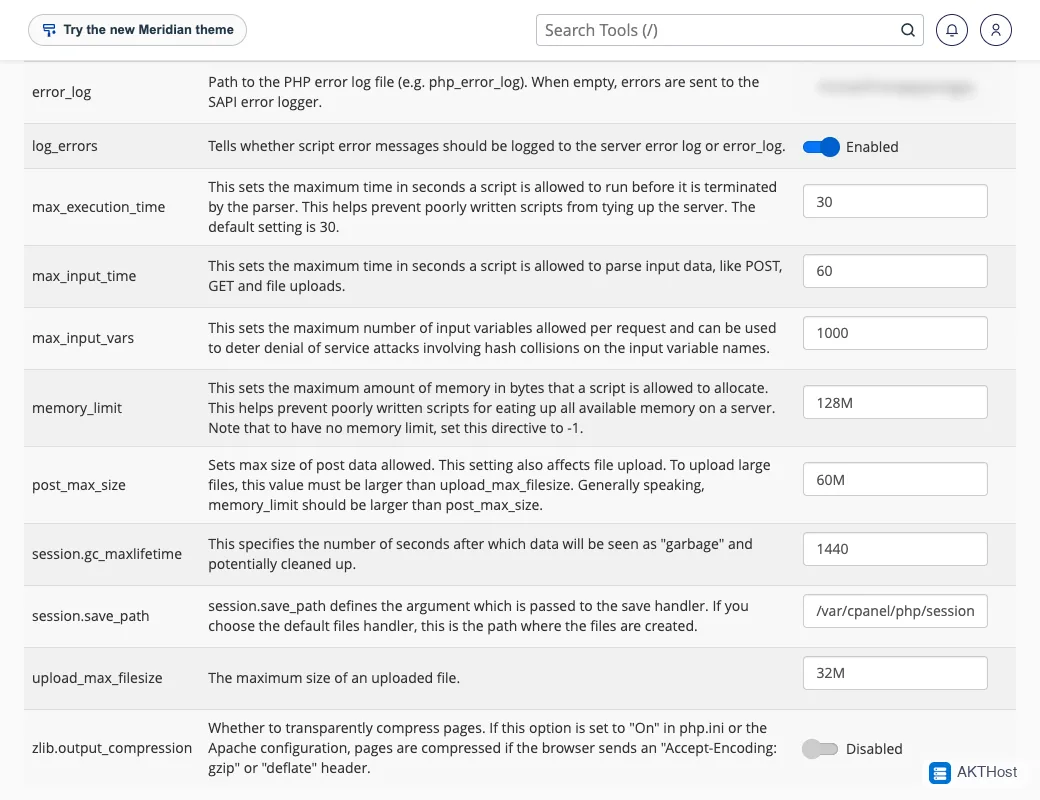
Open MultiPHP INI Editor, choose your domain, and raise memory_limit (for example to 256M). Raise upload_max_filesize and post_max_size if the problem is uploading big files. Save.
3 Find the heavy plugin
Switch off plugins one by one in Plugins and test after each. When the error goes away, you found it. Replace it with a lighter plugin.
4 Test
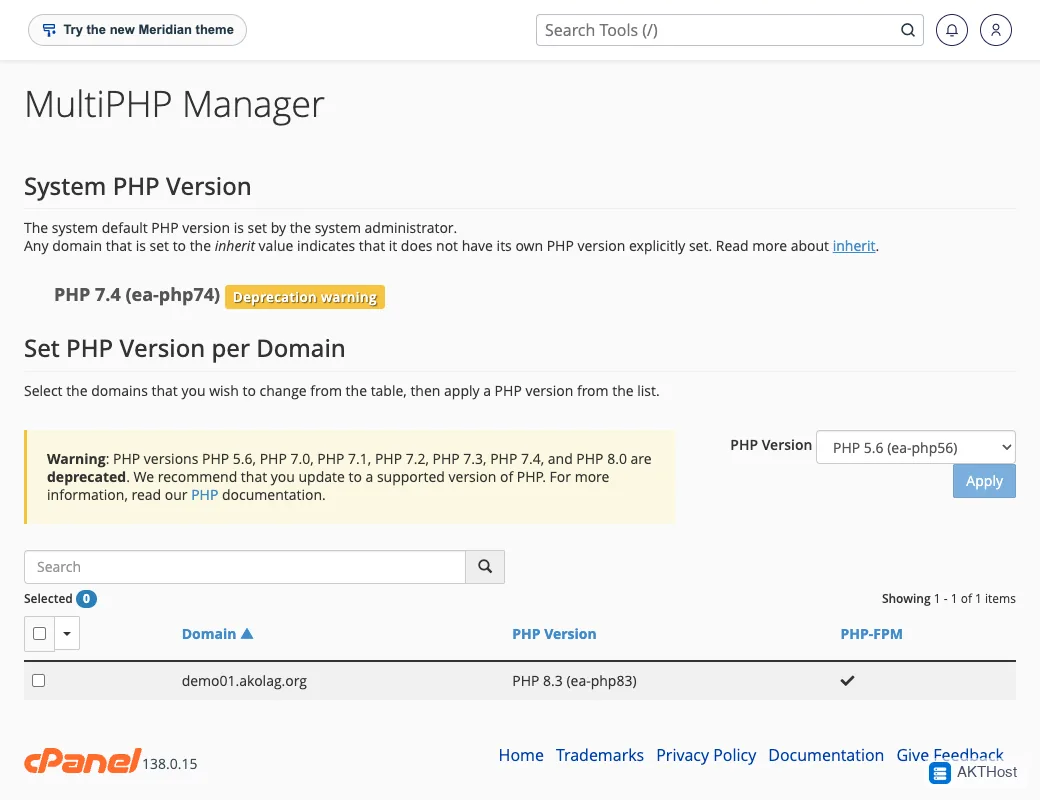
Reload the page that failed. Also check your PHP version in MultiPHP Manager. Use a current version your theme supports.
Cannot get into WordPress at all? The Knowledgebase link below has the file-based steps.
Questions people ask
Is bigger memory always better?
No. If one plugin eats memory, find that plugin. Very high limits only hide the problem.
Can an old PHP version cause errors?
Yes. Use a current PHP version that your theme and plugins support.