
Get the padlock: make your website load on HTTPS
Short answer: HTTPS shows the padlock and protects your visitors. Check your SSL, switch your site address to https, then force the redirect.
- 1Check the padlock
- 2Check SSL
- 3Use https address
- 4Force redirect
The little padlock next to your web address tells visitors the connection is private. Without it, browsers say Not secure. That can scare customers away.
How it works
Get the padlock in 4 steps
Tap a step to open it.
1 Look at your address bar
Open your site. Do you see a padlock, and does the address start with https://? If yes, move to step 4 to check the redirect.
2 Check that SSL is active
In cPanel open SSL/TLS Status. Your domain should show a valid certificate. If it does not, use the option to run AutoSSL and wait a few minutes.
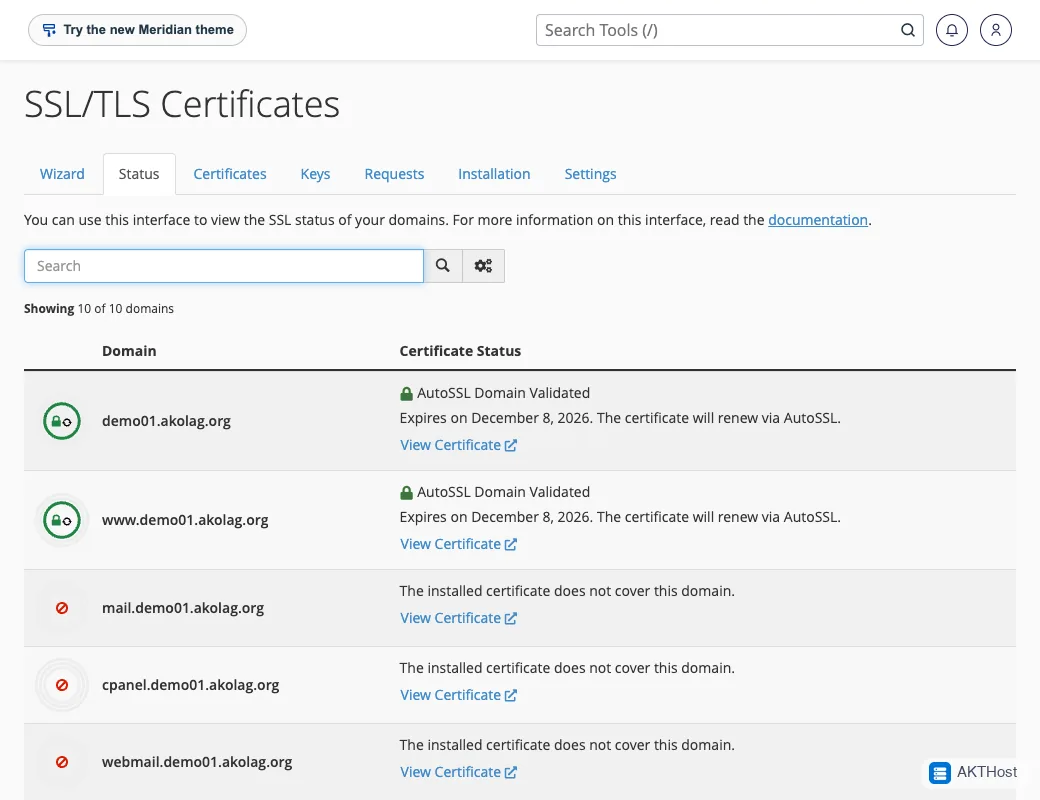
3 Change the site address to https
In WordPress open Settings, then General. Make both address fields start with https://. Save.
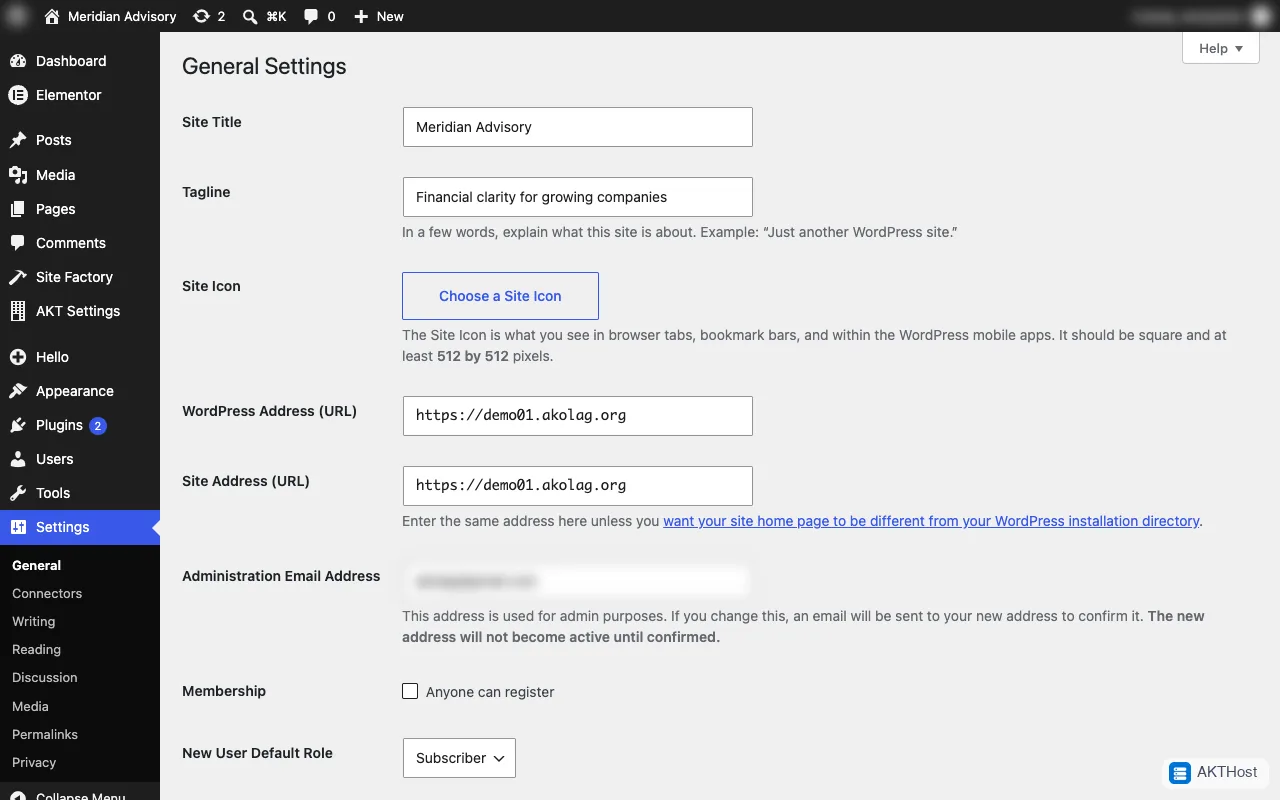
4 Send everyone to the https version
In cPanel open Domains. Find your domain and switch on Force HTTPS Redirect. Then test by typing your address with http://. It should jump to https://. The Knowledgebase link below has a second method.
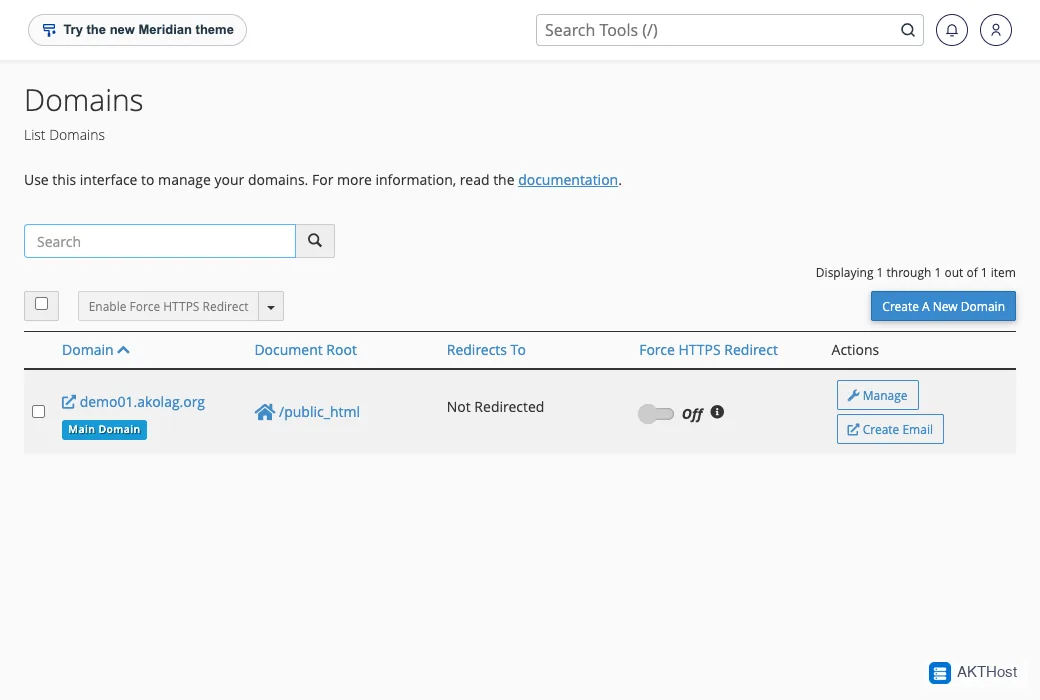
Still see Not secure? One image or script may still load over http. Re-save your pages and clear your cache.
Questions people ask
Why does my site say Not secure?
Your page is loading over plain http, or part of the page (like an image) still loads over http.
Will HTTPS help Google ranking?
Google says it uses HTTPS as a light ranking signal. The bigger win is that visitors trust you.