
wp2shell: is your WordPress site at risk? Fix it now
Short answer: Update WordPress to 6.8.6, 6.9.5, 7.0.2 or newer (the latest is 7.1.3). Then check your admin users and change your password.
- 1Check version
- 2Back up
- 3Update
- 4Check admins
- 5Test site
Do this today. A serious WordPress problem called wp2shell is public. Most sites can be fixed in 15 minutes.
What is wp2shell?
WordPress is the software that runs your website. In July 2026 the WordPress team fixed two serious security problems inside WordPress itself. They are named CVE-2026-63030 and CVE-2026-60137. Security researchers call them wp2shell.
In plain words: a stranger on the internet may be able to break into a website that has not been updated. WordPress.org says one of the problems can lead to “Remote Code Execution”. That means the stranger can run their own commands on your website. They do not need your password.
The good news: the fix is free and it is an update.
Who is at risk?
Check your WordPress version against this list.
Update to 7.0.2 or newer.
Update to 6.9.5 or newer.
Update to 6.8.6 or newer.
WordPress.org says these two problems did not affect it. But old versions have other holes.
The latest version today is 7.1.3.
Fix it in 5 steps
Tap a step to open it.
1 Check your WordPress version
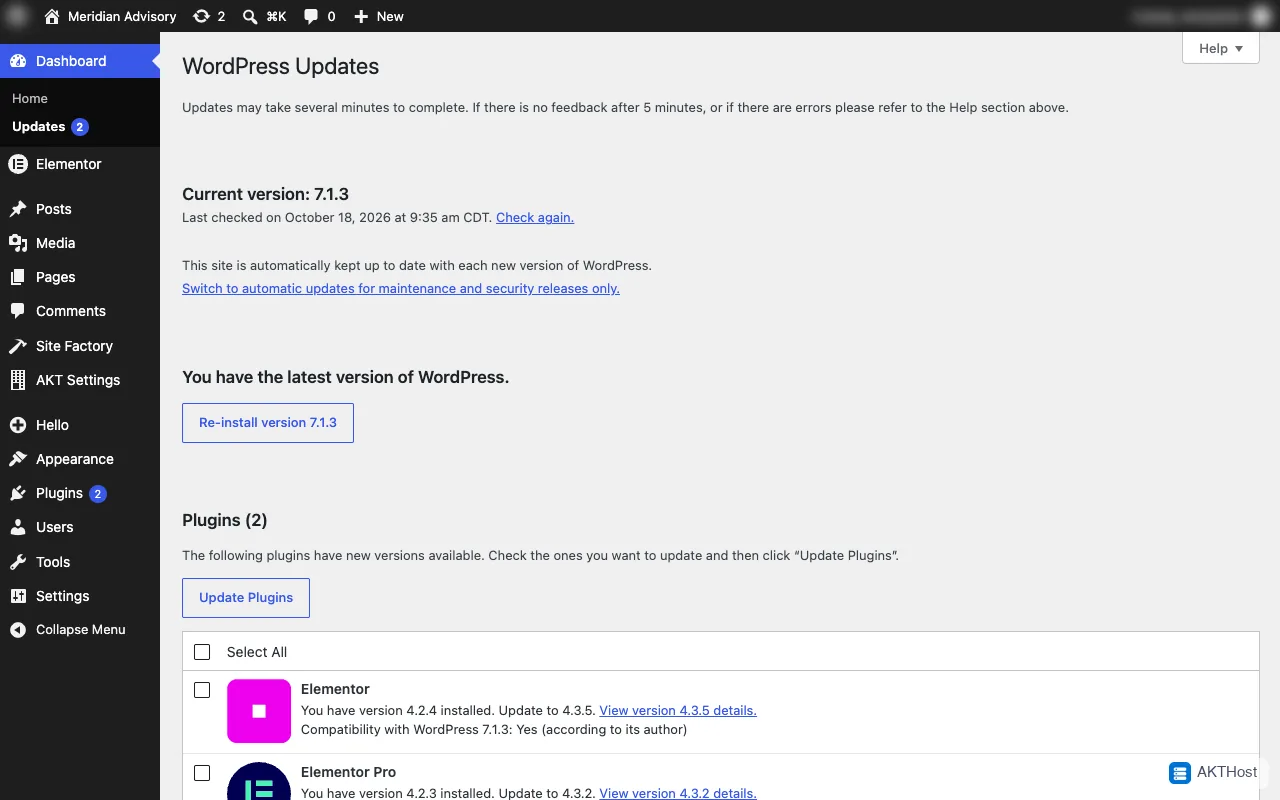
Log in to your WordPress admin. Go to Dashboard, then Updates. The page shows your version at the top.
You can also look at the bottom right corner of any admin page. It says "Version" and a number.
2 Make a backup first
A backup is a safe copy of your site. If something goes wrong, you can go back.
Log in to cPanel. Open Backup. Click Download a Full Account Backup and follow the screen. Or use the backup plugin you already trust.
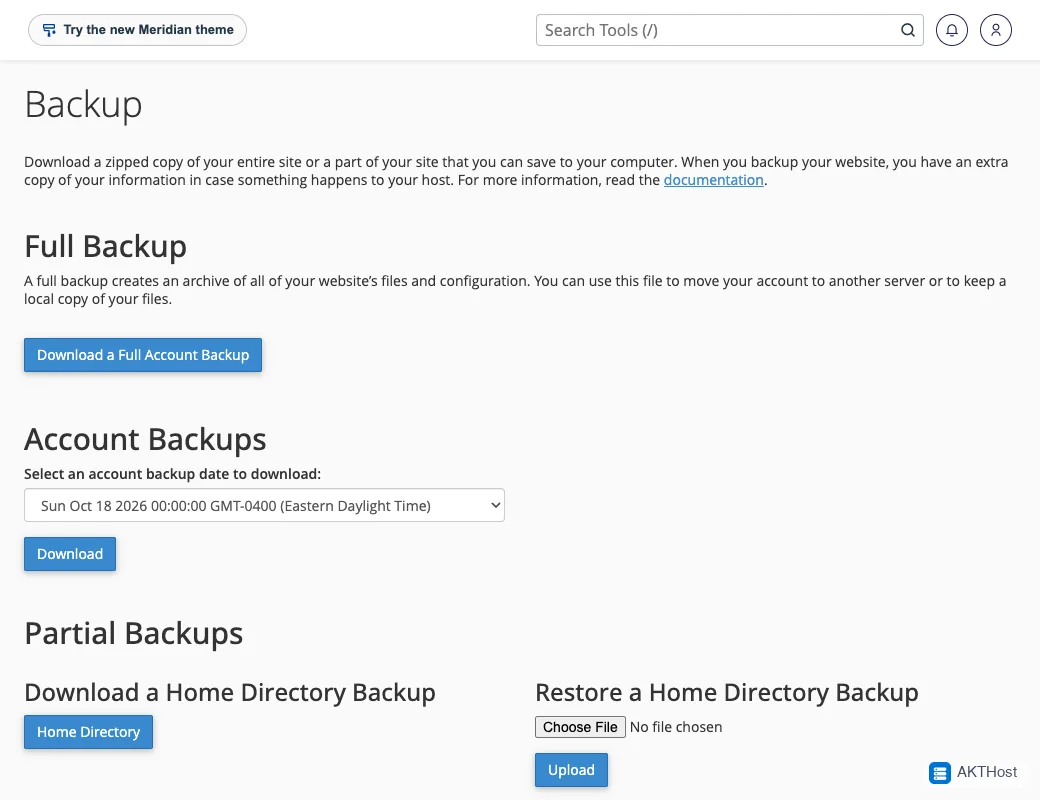
Save the file on your computer, not only on the server.
3 Update WordPress, then plugins and theme
Go to Dashboard, then Updates.
- Click Update Now for WordPress. Wait until it finishes.
- Tick all your plugins and click Update Plugins.
- Do the same for Themes.
If the button says you are on the latest version, you are done with this step.
4 Check your administrators
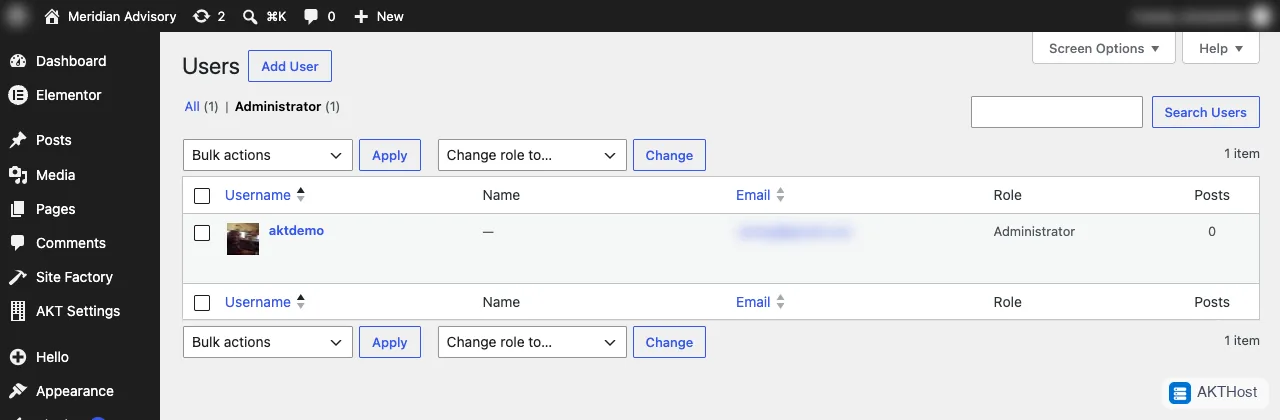
Go to Users and click Administrator at the top of the list.
Do you know every name and email? If you see someone you do not know, do not delete anything yet. This may mean your site was attacked. Go to the section "What if I think I was hacked?" below.
Also open Plugins and look at the list. Is there a plugin you did not install? That is also a warning sign.
5 Change your password and test your site
Go to Users, then Profile. Click Set New Password. Use a long password that you use nowhere else. Also change your cPanel password.
Now open your site in a private browser window. Check the home page, one inner page and your contact form. If you sell online, test the cart too.
Keep safe in the future
- Turn on automatic updates for WordPress and for plugins you trust.
- Look at your dashboard once a month. It takes 5 minutes.
- Delete plugins and themes you do not use. Less code means fewer holes.
- Keep a backup from before every big update.
- Give each person their own login and remove people who left.
Read our 10 minute WordPress safety checklist for the full list.
What if I think I was hacked?
Signs: an administrator you do not know, a plugin you did not install, your site sends visitors to strange pages, or Google shows a warning.
Stay calm. Do not delete files in a hurry. Take a backup, change your passwords, and read what to do if your WordPress site is hacked. Then open a support ticket with your domain name and what you saw.
We can do it for you
Not comfortable doing this yourself? That is fine. Our WordPress care service can update and check your site for you. See WordPress care in the store.
Questions people ask
Do I need a plugin to be at risk?
No. The problem is in WordPress itself, not in a plugin. That is why updating WordPress is the fix.
My WordPress version is older than 6.8. Am I safe?
According to WordPress.org, versions before 6.8 were not affected by these two problems. But old versions have other known holes, so please update anyway.
WordPress updates by itself. Do I still need to check?
Yes. WordPress.org switched on forced updates for affected sites, but an update can fail or be blocked. Open your dashboard and look at the version number yourself.
I updated. Is that enough?
Updating closes the hole. It does not remove anything an attacker may have added before. Check your administrator list and your plugin list, as shown in step 4.
Will updating break my site?
It rarely does, and that is why step 2 is a backup. If something looks wrong, restore the backup and open a support ticket.