
Set up your business email on your phone in 5 minutes
Short answer: Create the mailbox in cPanel, then add it to your phone with the mail server settings cPanel gives you.
- 1Create mailbox
- 2Get settings
- 3Add on phone
- 4Send a test
A business email on your own domain looks professional. Here is how to get it on your phone.
Steps
Tap a step to open it.
1 Create the mailbox
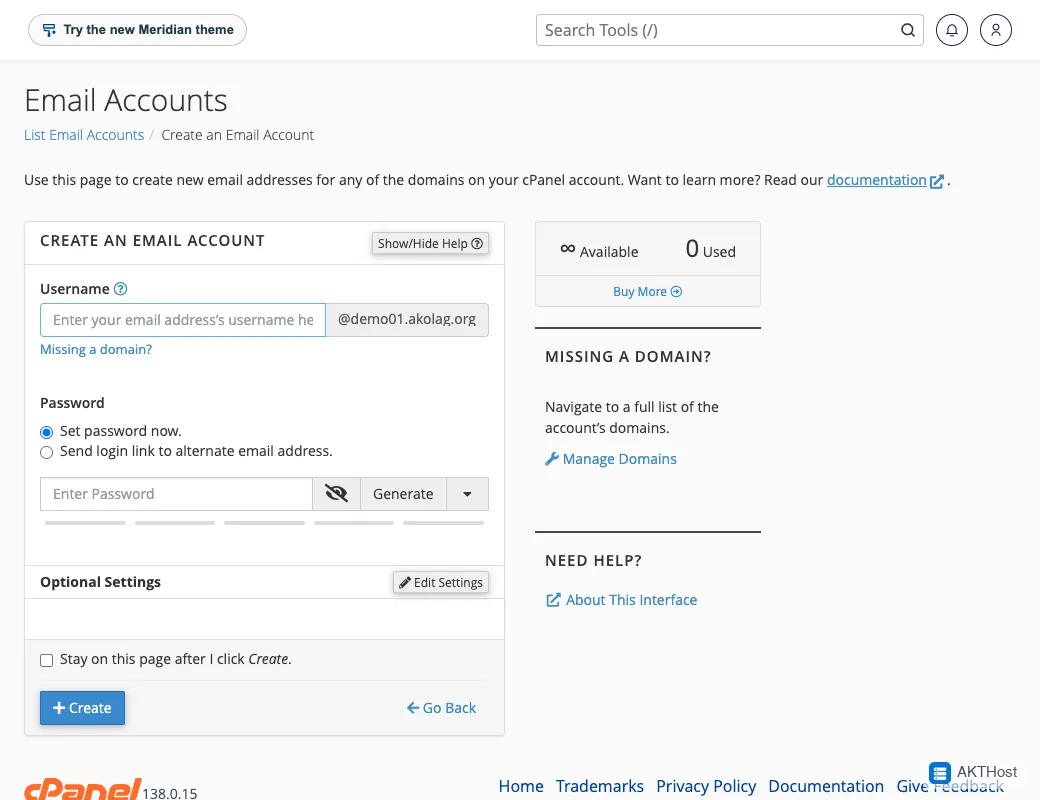
Log in to cPanel and open Email Accounts. Click Create, choose a name and a strong password.
2 Get your settings
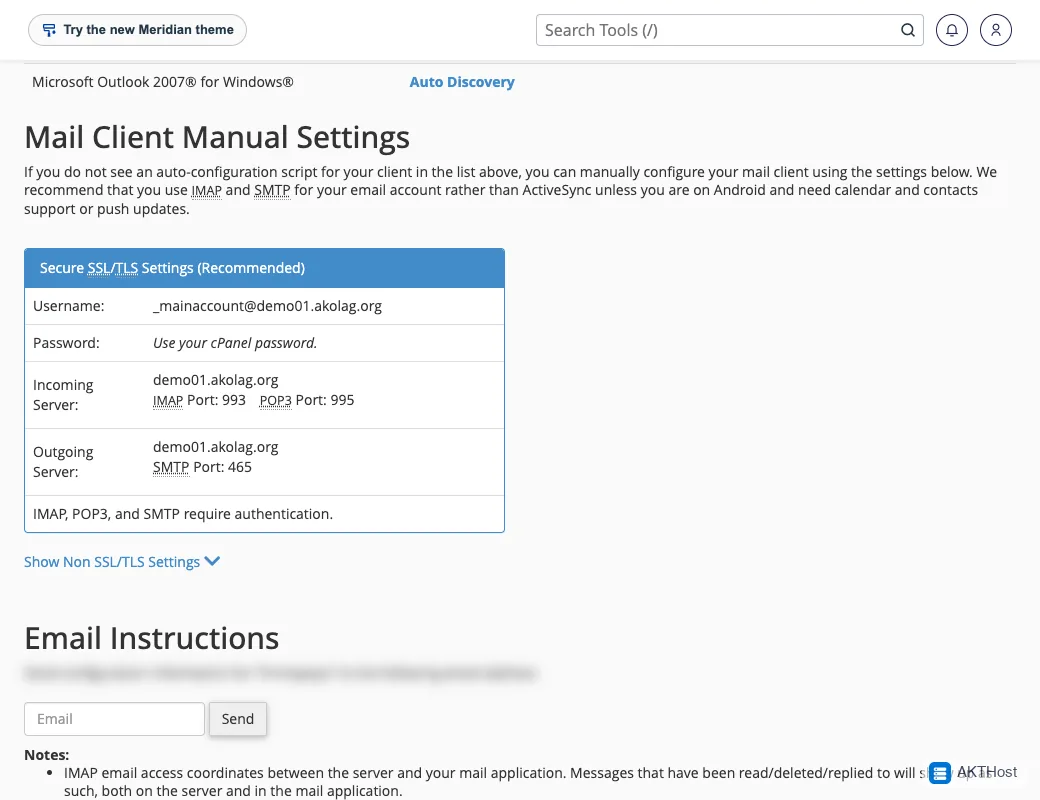
Next to the mailbox click Connect Devices. cPanel shows the exact server names, ports and username for your account. Use those.
3 Add the account on your phone
iPhone: Settings, Mail, Accounts, Add Account, Other. Android: open your mail app, Add account, Other or Personal (IMAP). Type your full email address and the settings from step 2.
4 Send a test
Send an email to yourself from the phone and reply to it from another address. If both work, you are done.
Never share your email password in a chat or in a support ticket.
Questions people ask
Can I use webmail instead?
Yes. Webmail works in any browser. See the Knowledgebase link above for the webmail address.
My phone says wrong password.
Type the password again slowly. Check that the username is the full email address, like name@yourbusiness.com.